> ## Documentation Index
> Fetch the complete documentation index at: https://nuntly.com/docs/llms.txt
> Use this file to discover all available pages before exploring further.
# Create Your Account
> Learn how to create a Nuntly account, verify your email, sign in with email or social auth, and enable two-factor authentication.
## Create an account
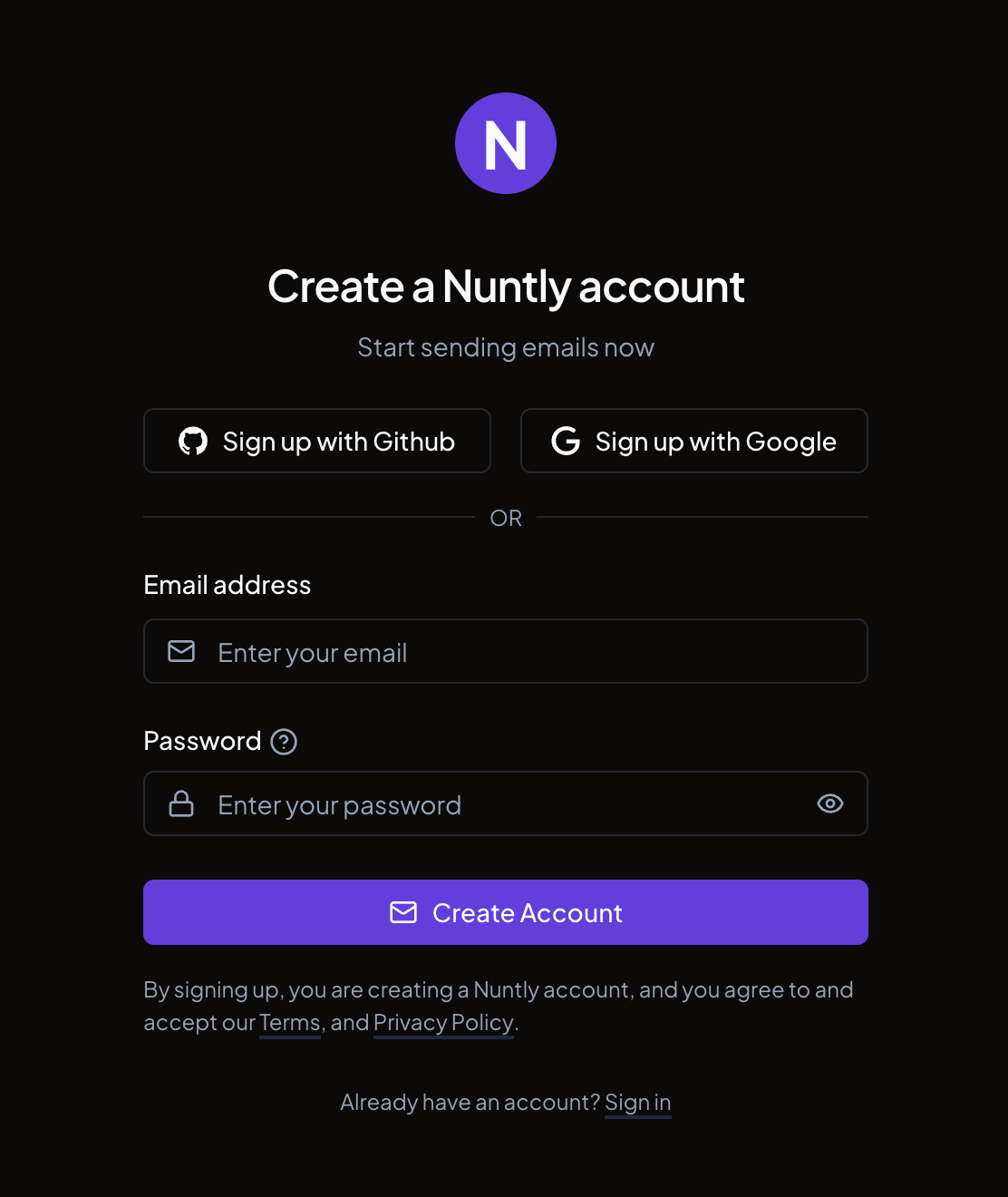
Go to [nuntly.com](https://nuntly.com) and click **Start Free today**. You can create an account using any of the following methods:
* **Email and password**: provide an email address and choose a password
* **GitHub**: authorize with your GitHub account
* **Google**: authorize with your Google account
 ### With email and password
Enter your email address in the sign-up form.
Choose a password that meets the requirements.
Click **Create Account**.
A verification email is sent to the address you provided. You must verify your email before accessing the dashboard.
### Verify your email
If you signed up with email and password, check your inbox for a verification email from Nuntly. Click the link in that email to verify your address.
### With email and password
Enter your email address in the sign-up form.
Choose a password that meets the requirements.
Click **Create Account**.
A verification email is sent to the address you provided. You must verify your email before accessing the dashboard.
### Verify your email
If you signed up with email and password, check your inbox for a verification email from Nuntly. Click the link in that email to verify your address.
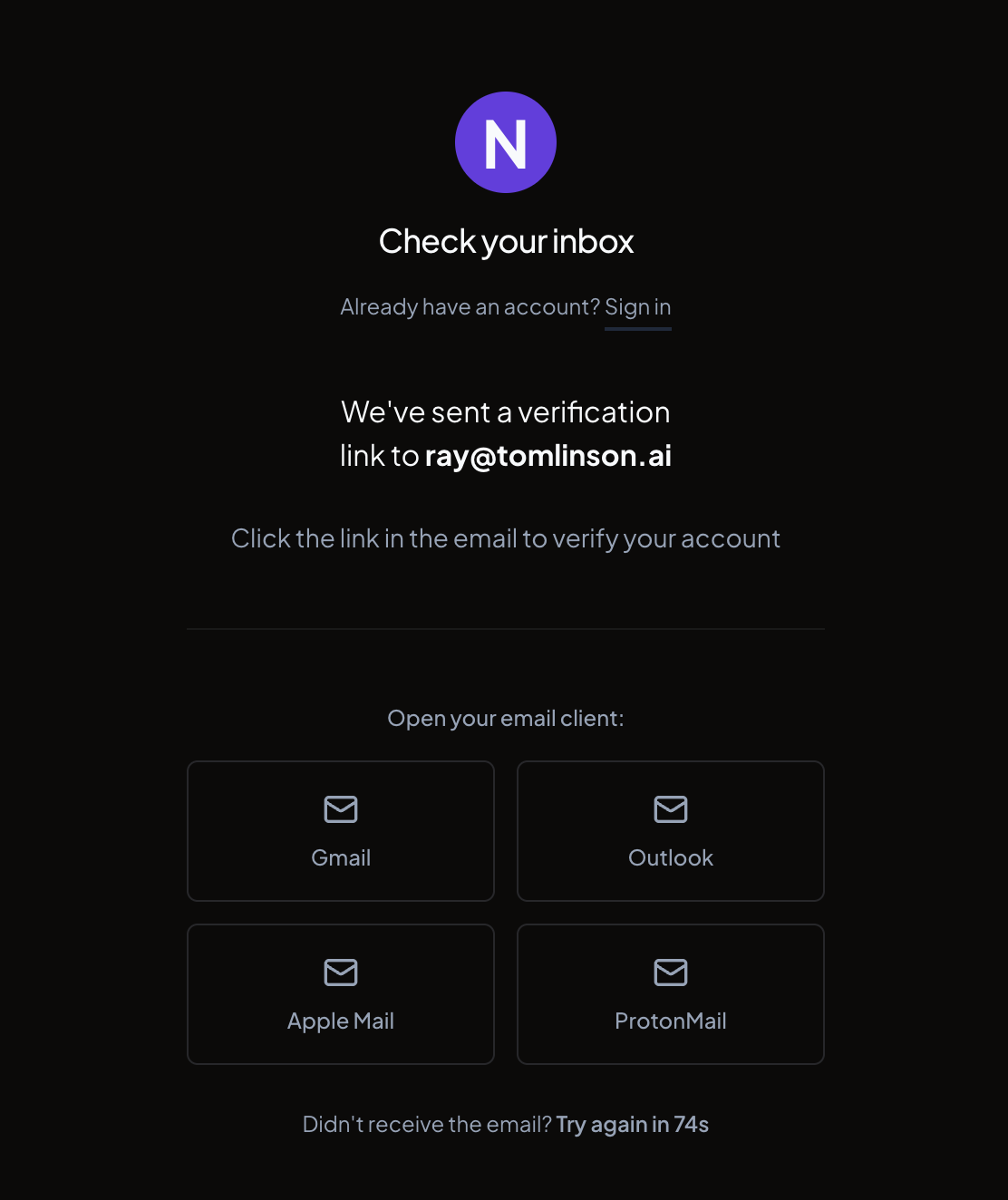 Once verified, you are redirected to the dashboard.
### With a social provider
Click **Sign up with GitHub** or **Sign up with Google**. You will be redirected to the provider to authorize access, then returned to Nuntly. Your account is ready immediately. No email verification step is required.
## Sign in
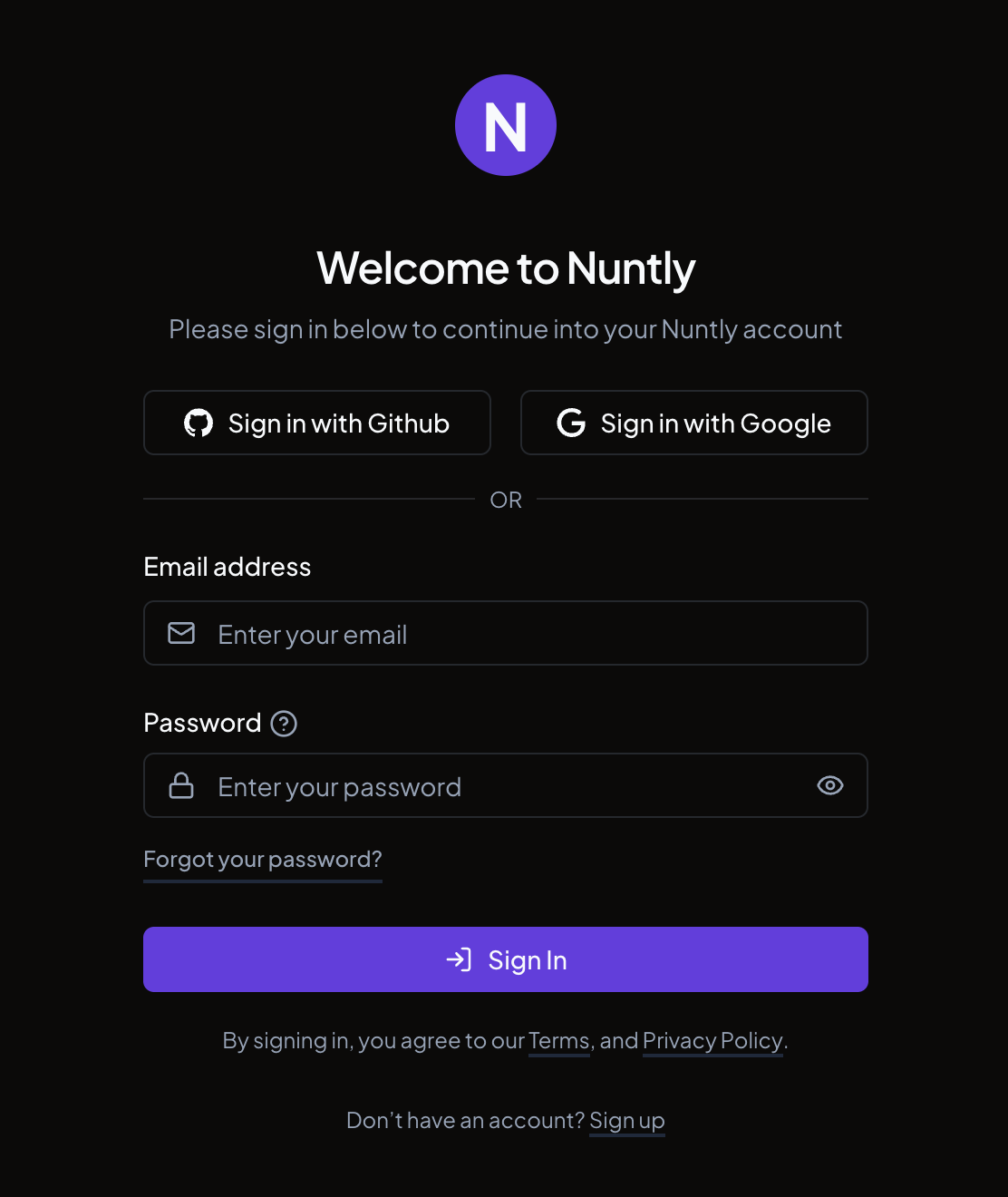
Go to [nuntly.com](https://nuntly.com) and click **Sign in**. Use the same method you used to sign up: email and password, or a social provider.
Once verified, you are redirected to the dashboard.
### With a social provider
Click **Sign up with GitHub** or **Sign up with Google**. You will be redirected to the provider to authorize access, then returned to Nuntly. Your account is ready immediately. No email verification step is required.
## Sign in
Go to [nuntly.com](https://nuntly.com) and click **Sign in**. Use the same method you used to sign up: email and password, or a social provider.
 ## Enable two-factor authentication
Two-factor authentication (2FA) adds an extra verification step each time you sign in, protecting your account from unauthorized access.
You need an authenticator app on your device to set up 2FA. Compatible apps include [Google
Authenticator](https://support.google.com/accounts/answer/1066447) and [Authy](https://authy.com/download/).
In the dashboard, go to **Settings** > **Security**.
Click **Enable 2FA**.
## Enable two-factor authentication
Two-factor authentication (2FA) adds an extra verification step each time you sign in, protecting your account from unauthorized access.
You need an authenticator app on your device to set up 2FA. Compatible apps include [Google
Authenticator](https://support.google.com/accounts/answer/1066447) and [Authy](https://authy.com/download/).
In the dashboard, go to **Settings** > **Security**.
Click **Enable 2FA**.
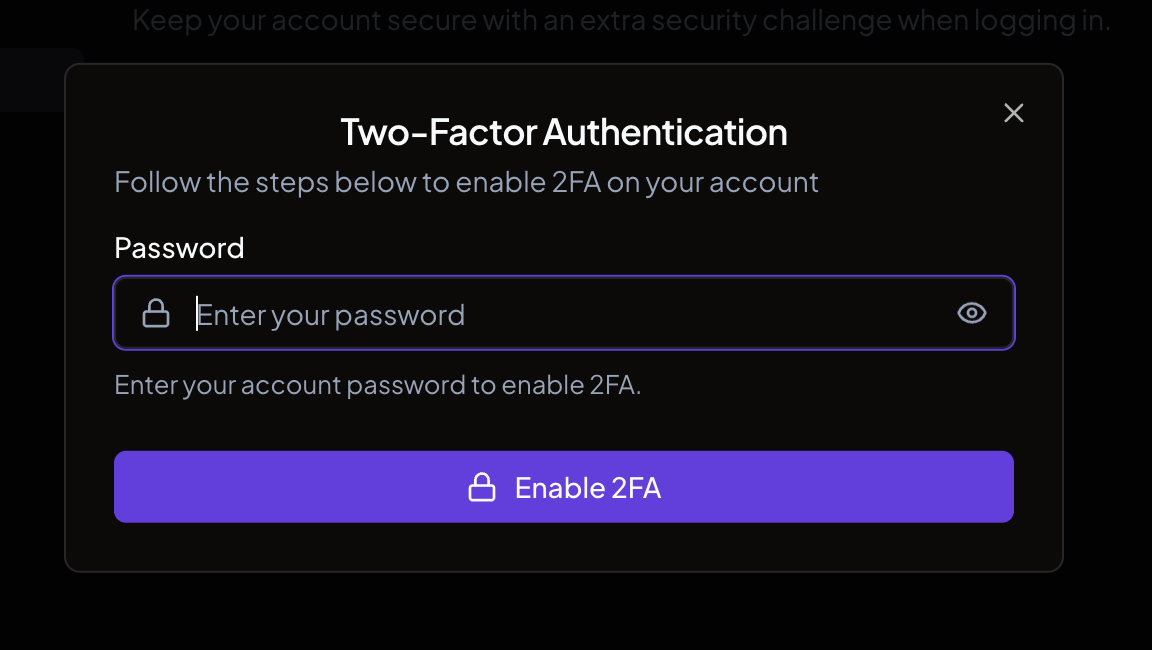
 Enter your account password to confirm your identity and click **Enable 2FA**.
 Scan the QR code with your authenticator app, or manually enter the secret shown below it.
Enter the 6-digit code displayed in your authenticator app.
Click **Verify**.
Scan the QR code with your authenticator app, or manually enter the secret shown below it.
Enter the 6-digit code displayed in your authenticator app.
Click **Verify**.
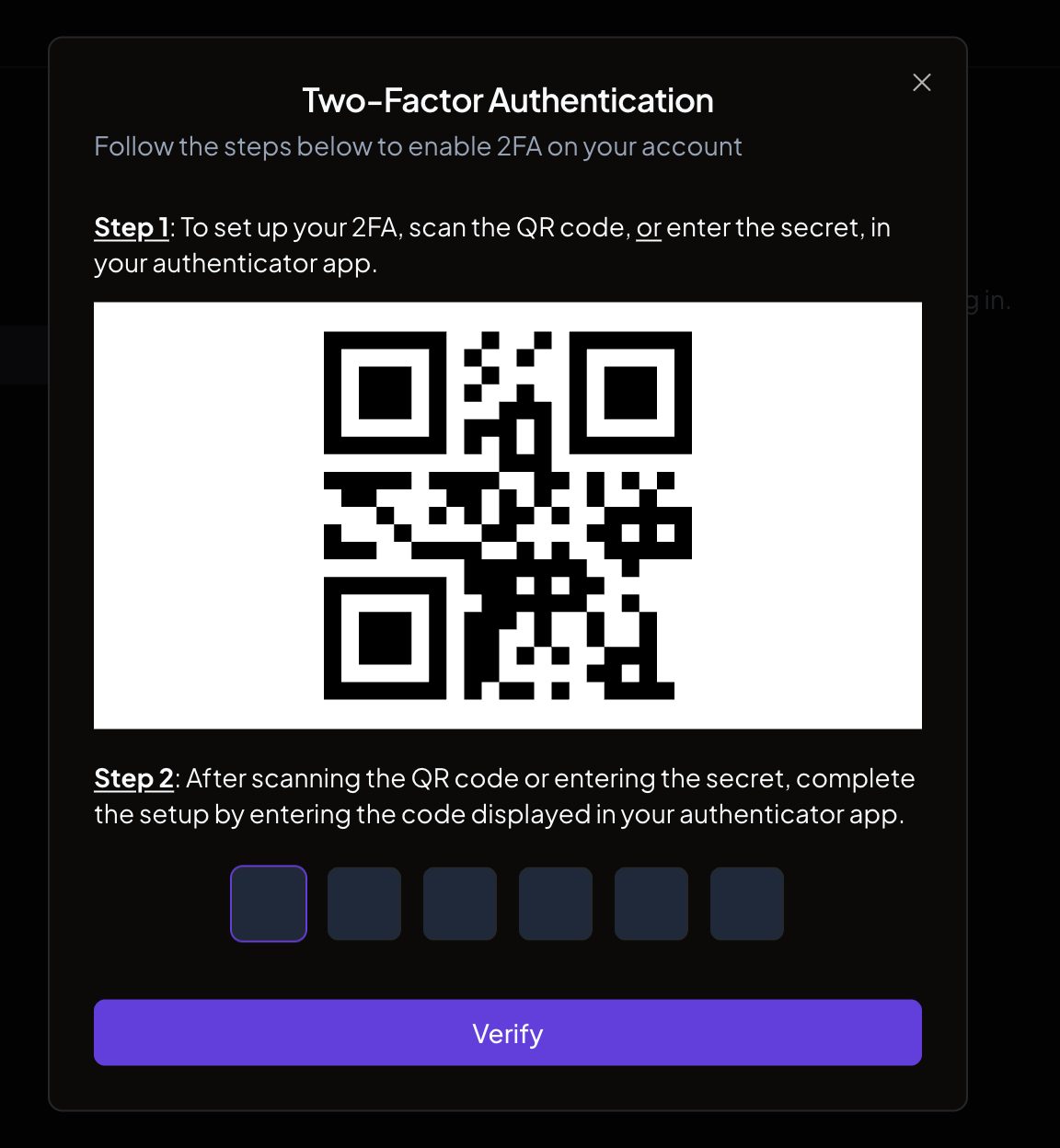 Once enabled, you will be prompted for a 6-digit code from your authenticator app each time you sign in.